 Masjid Hub
How to use the Masjid Hub app
A simple, step by step guide with pictures. Find jamaat times at masjids near you, see daily namaz timings, set Wafat reminders for your family, and, if you are an imam or masjid admin, keep your masjid's times up to date.
Getting started
Do this once, the first time you open the app.
- Install Masjid Hub from the Play Store (Android) or the App Store (iPhone). It is free.
- Open the app. It asks for Your area. Tap it and choose your country, state, city and then your area (for example Sarkhej, Ahmedabad).
- Tap Allow when the phone asks about notifications. This lets the app tell you when a masjid near you changes its jamaat time. You can also turn this on later in Settings.
- Tap Continue. You are ready. You do not need to make an account to see times.
The five buttons at the bottom
These are always at the bottom of the screen. Tap one to go to that page.





For namazis who pray at the masjid
Everything here works without logging in.
 1
2
3
4
5
6
7
1
2
3
4
5
6
7
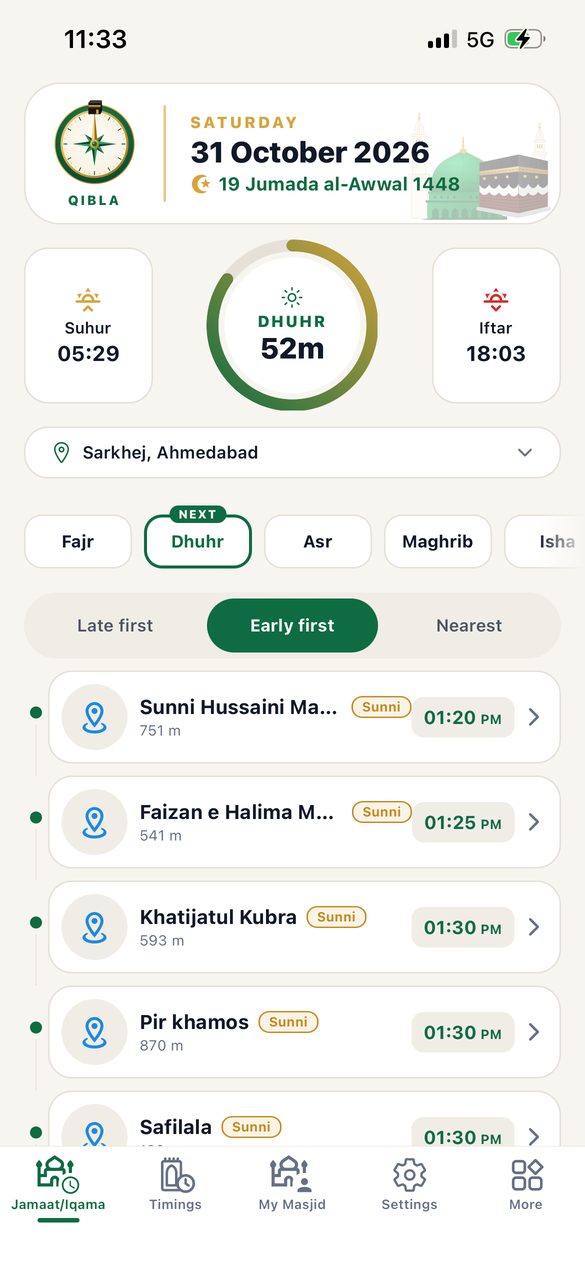
See jamaat times at masjids near you
Tap Jamaat/Iqama at the bottom left.
- Your area. Shows which area you are seeing. Tap it to choose another area, for example when you travel.
- Namaz buttons (Fajr, Dhuhr, Asr, Maghrib, Isha). The next namaz is already chosen and marked NEXT (or NOW). Tap another one to see its jamaat times. On Friday, Dhuhr shows Jumu'ah.
- Masjid list. Every masjid in your area with its jamaat time on the right and how far it is from you. Tap a masjid to open its page with all five jamaat times, Jumu'ah, address and, in season, Eid and Taravih.
- Order of the list. Early first shows the earliest jamaat on top, Late first the latest, and Nearest the closest masjid (the app asks to use your location for this).
- The circle shows which namaz time is running now and how much time is left.
- Suhur and Iftar times for today. Suhur ends when Fajr starts; Iftar is at Maghrib (sunset).
- Qibla. Tap the compass to find the Qibla direction. Hold the phone flat and turn until it says You are facing the Qibla.
 1
2
3
4
5
1
2
3
4
5
Daily namaz timings
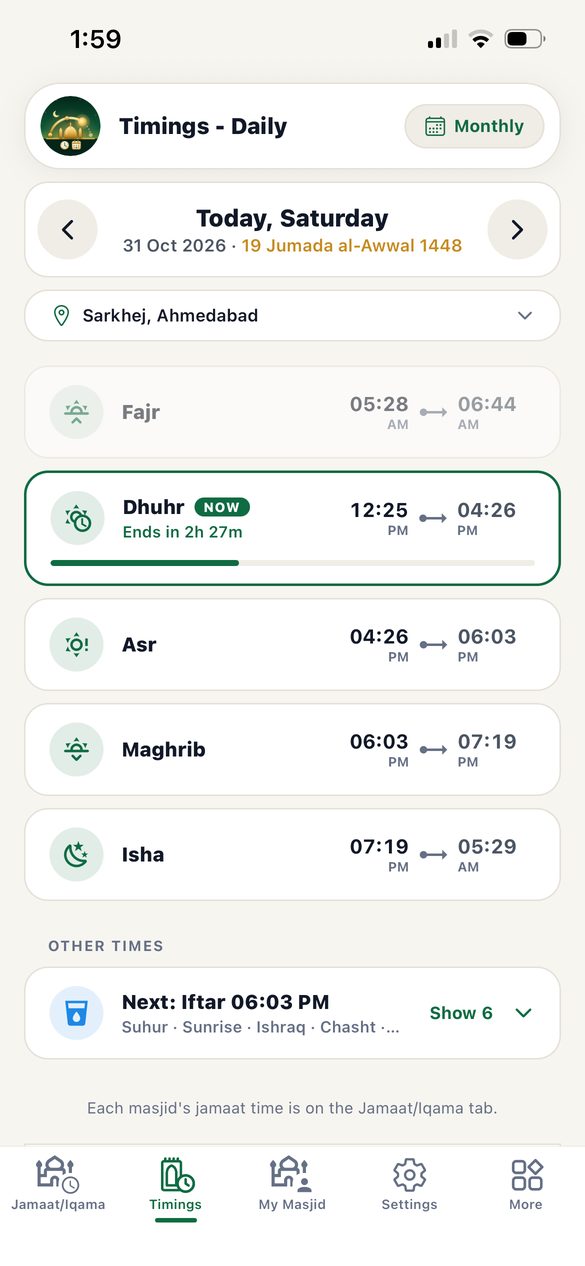
Tap Timings at the bottom.
This page shows when each namaz starts and ends in your area. It is not the masjid jamaat time; that is on the Jamaat/Iqama page.
- Arrows. Tap < for yesterday or > for tomorrow. The Islamic (Hijri) date is shown under the normal date.
- Area. Tap to see timings for another area.
- The namaz running now has a green border, a NOW tag and how long until it ends. Times that are over look faded.
- Other times. Tap Show 6 to see Suhur, Sunrise, Ishraq, Chasht, Dahwa-e-Kubra and Iftar.
- Monthly. Tap Monthly at the top to see the whole month.
 1
2
3
4
1
2
3
4
Monthly timetable
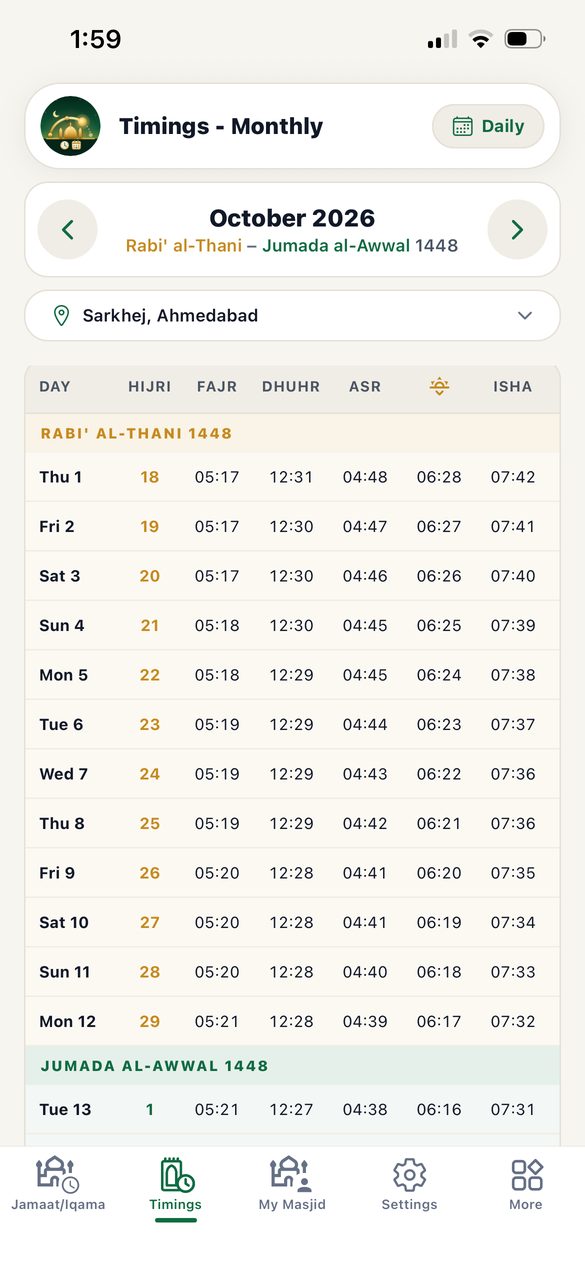
On the Timings page, tap Monthly.
- Arrows move to the last or next month.
- HIJRI column shows the Islamic date. A green band marks where a new Islamic month starts.
- Times for Fajr, Dhuhr, Asr, Maghrib (the small sun icon) and Isha for each day. Scroll down for the rest of the month. Today is highlighted.
- Tap Daily to go back to today's view.
 1
2
3
4
1
2
3
4
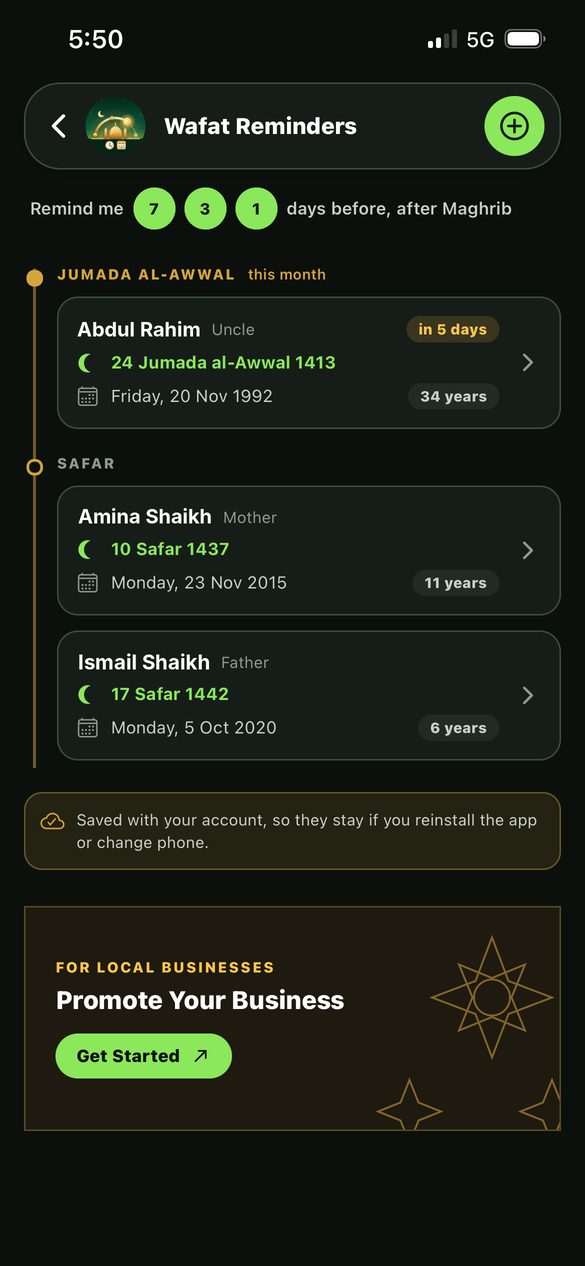
Wafat reminders for your family
Tap More at the bottom right, then Wafat Reminders.
Save the date a loved one passed away. Every year the app reminds you before that Islamic date, so you never miss their Fatiha.
- Tap the round + at the top to add a person.
- Remind me 7 · 3 · 1 days before. Tap a number to turn it on or off. Green means on. The reminder comes after Maghrib.
- Each person shows the Islamic date, the English date, how many years ago, and “in 5 days” when it is close. Tap a person to change or delete them.
- If you have logged in, the dates are saved with your account and stay even if you change phone. If not, they are saved on this phone only.
 1
2
3
4
5
1
2
3
4
5
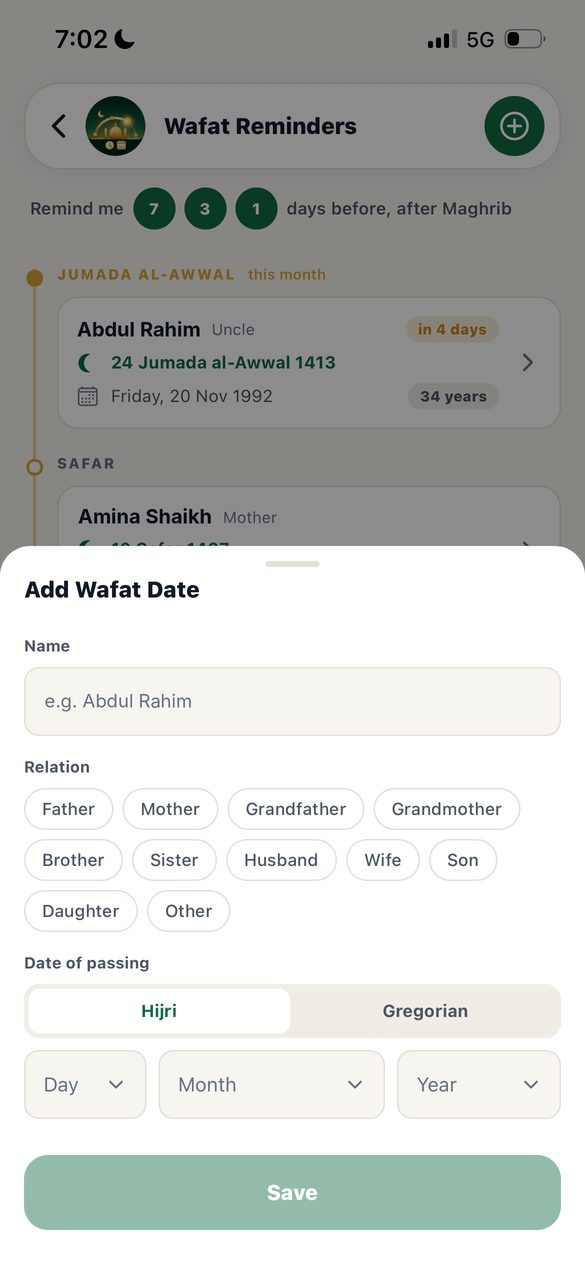
Add a Wafat date
On Wafat Reminders, tap the round +.
- Name. Type the person's name.
- Relation. Tap one: Father, Mother, Grandfather and so on, or Other.
- Date of passing. Choose Hijri if you know the Islamic date, or Gregorian if you know the English date. The app works out the other one for you.
- Pick the Day, Month and Year.
- Tap Save.
 1
2
3
4
5
6
7
1
2
3
4
5
6
7
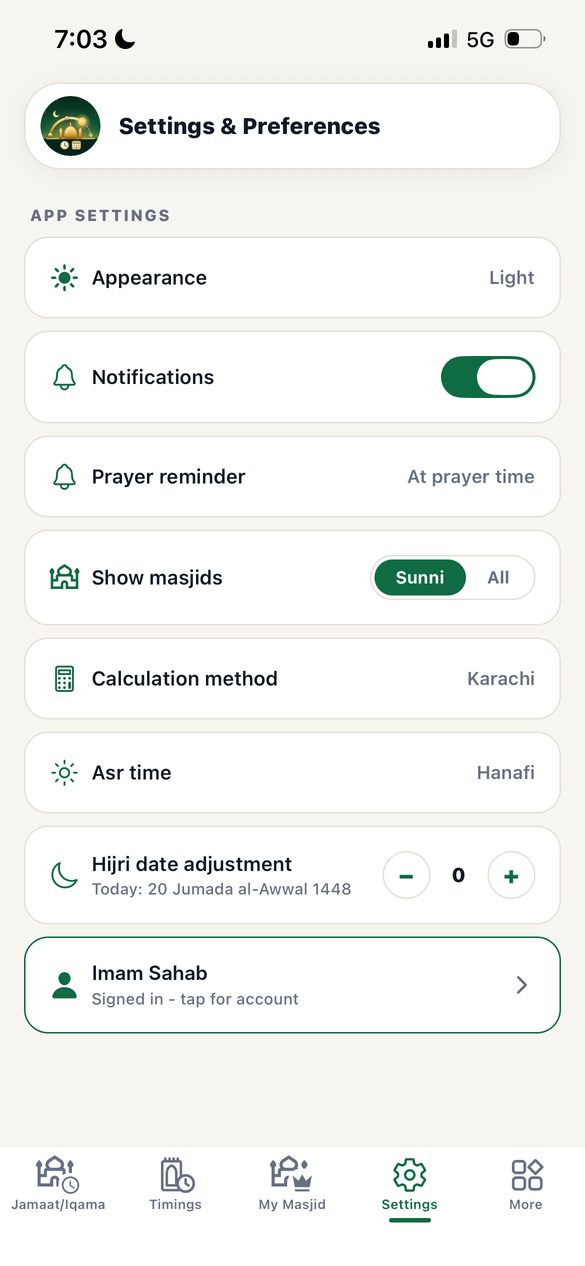
Settings
Tap Settings at the bottom.
- Appearance. Choose a light (white) or dark (black) look.
- Notifications. Keep this on (green) to get reminders and alerts when a masjid changes its time. If it is off, a red mark shows on the Settings button.
- Prayer reminder. Get a reminder at each namaz time, or 5, 10, 15 or 30 minutes before. Choose Off if you do not want it.
- Show masjids. Sunni shows Sunni masjids only. All shows every masjid.
- Calculation method and Asr time. Leave these as Karachi and Hanafi unless your masjid follows another method. They change the Timings page, not masjid jamaat times.
- Hijri date adjustment. If the moon was seen a day early or late in your city, tap − or + so the Islamic date matches.
- Login (for imams and admins). Shows your name once you have logged in. See Log in.
 1
2
3
4
5
6
7
1
2
3
4
5
6
7
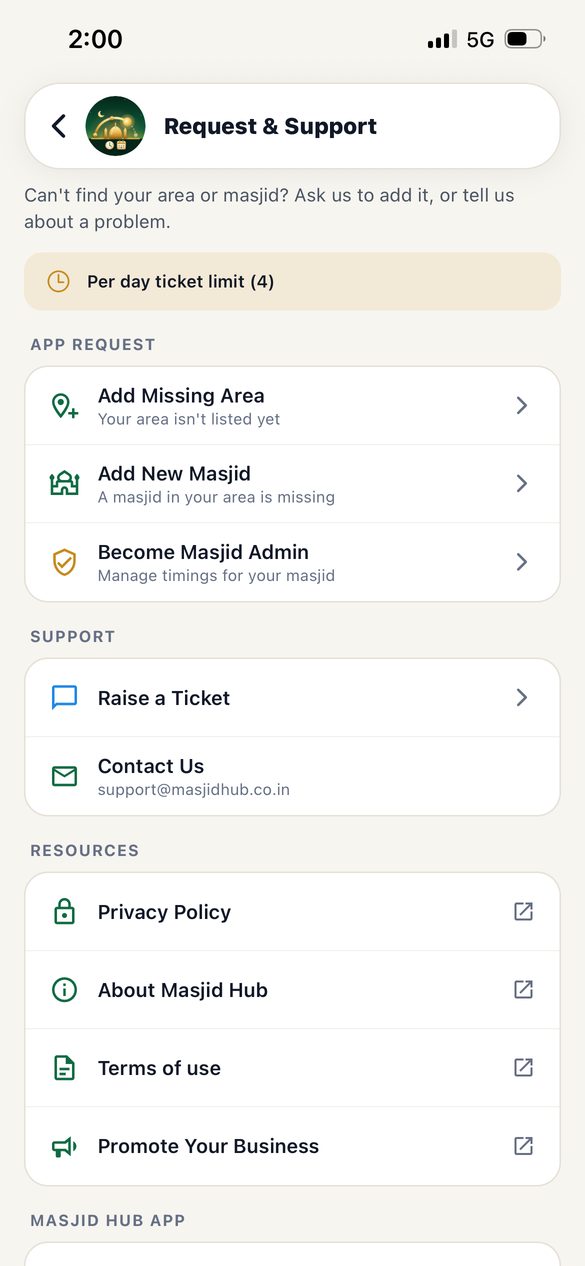
Request & Support
Tap More at the bottom right, then Request & Support.
- Daily limit. You can send up to 4 requests a day, one of each kind. A used one turns grey until midnight.
- Add Missing Area when your area is not in the app. How to fill it.
- Add New Masjid when a masjid in your area is missing. How to fill it.
- Become Masjid Admin if you are the imam or a committee member and want to update your masjid's times. How to fill it.
- Raise a Ticket to tell us about a problem or wrong time. How to fill it.
- Contact Us shows our email: support@masjidhub.co.in
- Resources opens our Privacy Policy, About, Terms of use and Promote Your Business pages.
Further down this page:
- Share App sends the app link to friends and family on WhatsApp or any other app.
- My requests lists what you sent in the last 15 days and whether it was approved. If not, the reason is shown.
- Delete Account (only when logged in) removes your account, your roles and your saved Wafat dates for good. It asks once to be sure.
 1
2
3
4
5
1
2
3
4
5
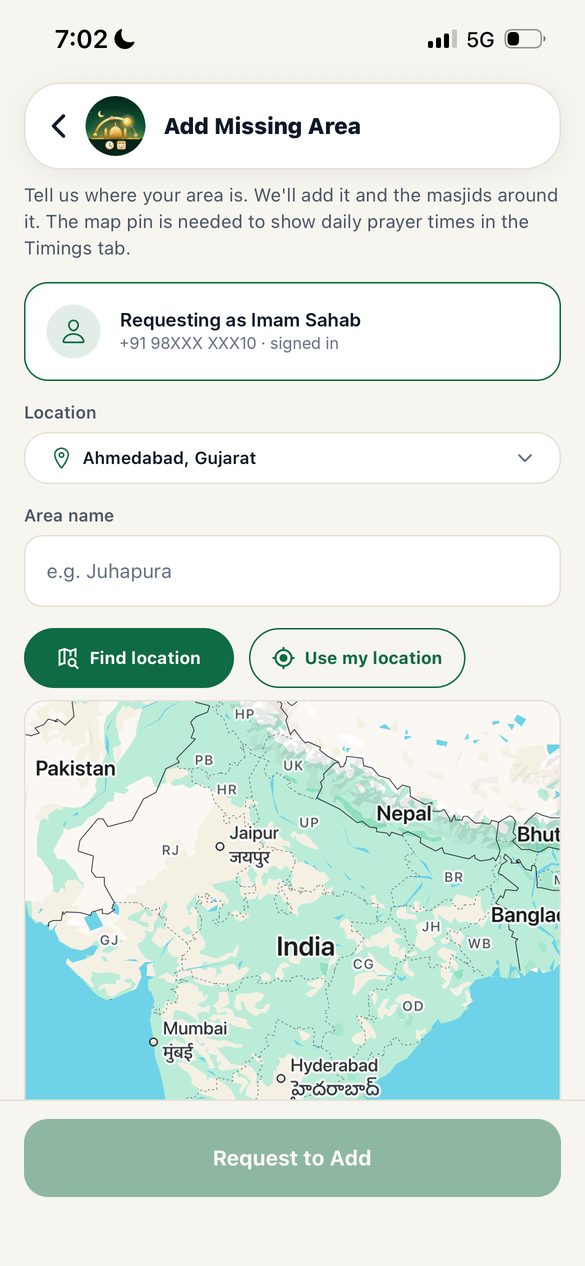
Add a missing area
More → Request & Support → Add Missing Area.
- Location. Choose the state and city the area is in.
- Area name. Type the name, for example Juhapura.
- Tap Find location to search the area name on the map, or tap Use my location if you are standing in that area now.
- Map. Check the pin is in the right place. Move the map to fix it. The pin is needed to show correct namaz timings.
- Tap Request to Add. We add the area and its masjids, and you get a notification.
 1
2
3
4
5
6
1
2
3
4
5
6
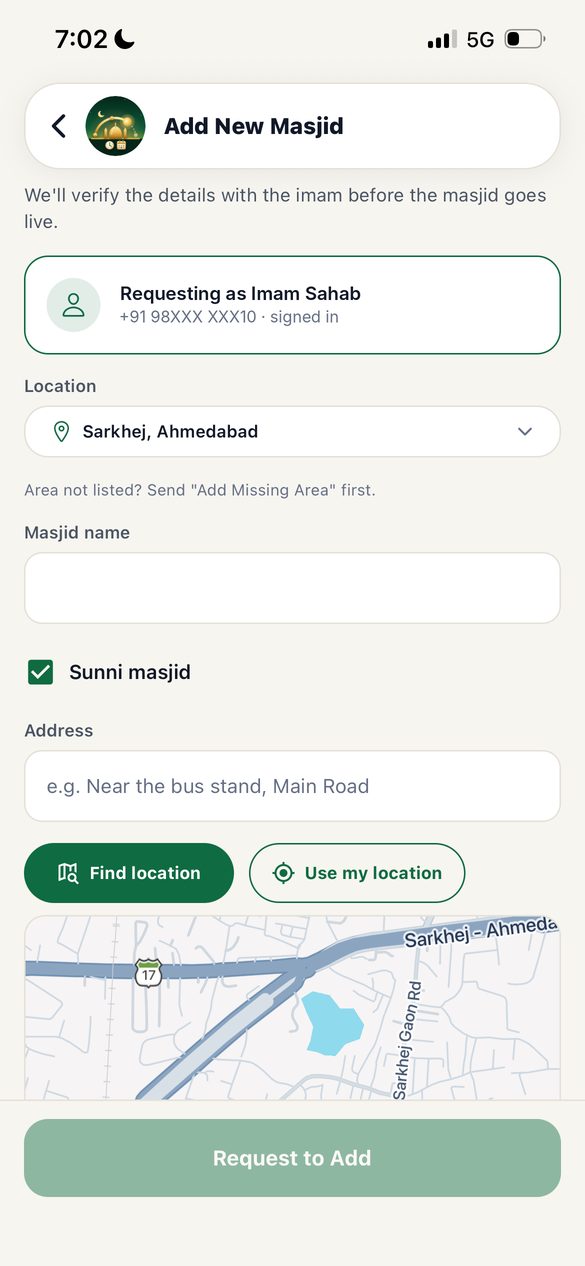
Add a new masjid
More → Request & Support → Add New Masjid.
- Location. Choose the area. If the area is not listed, send Add Missing Area first.
- Masjid name. Type the full name.
- Sunni masjid. Leave the tick if it is a Sunni masjid; tap to remove it if not.
- Address. A short address or landmark, for example “Near the bus stand, Main Road”.
- Put the pin on the masjid with Find location or Use my location.
- Scroll down, fill the jamaat times you know, and tap Request to Add. We check the details with the imam before the masjid shows in the app.
 1
2
3
1
2
3
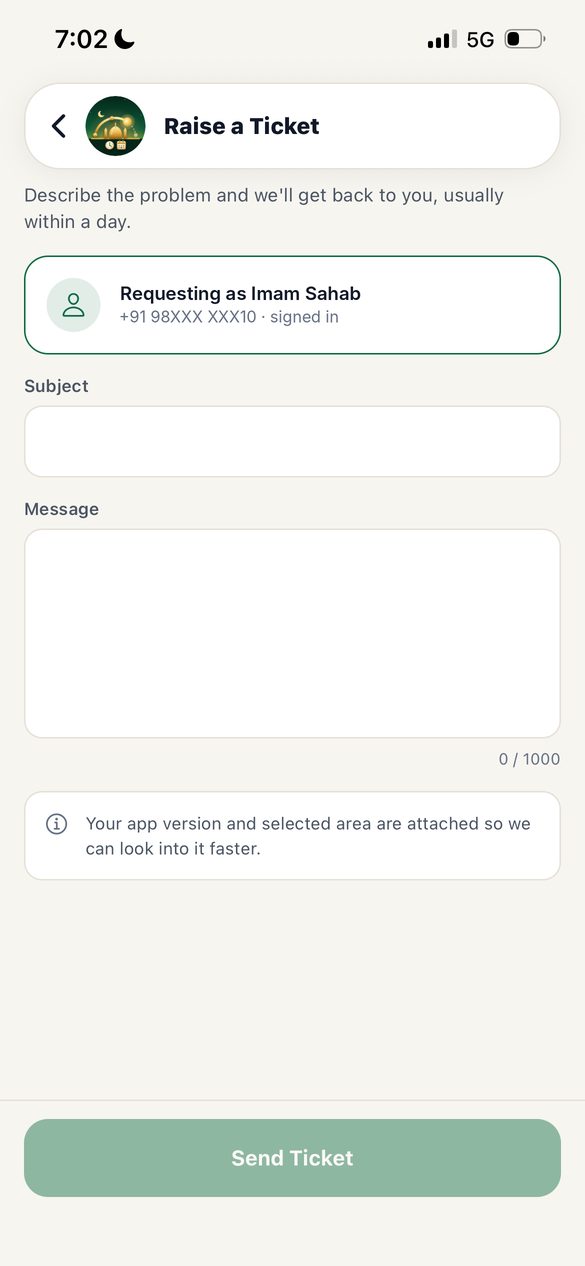
Report a problem (Raise a Ticket)
More → Request & Support → Raise a Ticket.
- Subject. A few words, for example “Wrong Isha time at Noori Masjid”.
- Message. Explain the problem in your own words, in any language you like (up to 1000 letters).
- Tap Send Ticket. We usually reply within a day. Your app version and area are sent with it, so you do not need to type them.
Keep your masjid's times up to date
Three steps: ask for access once, log in with your mobile number, then change times whenever they change. Namazis near you get a notification when you update a time.
 1
2
3
1
2
3
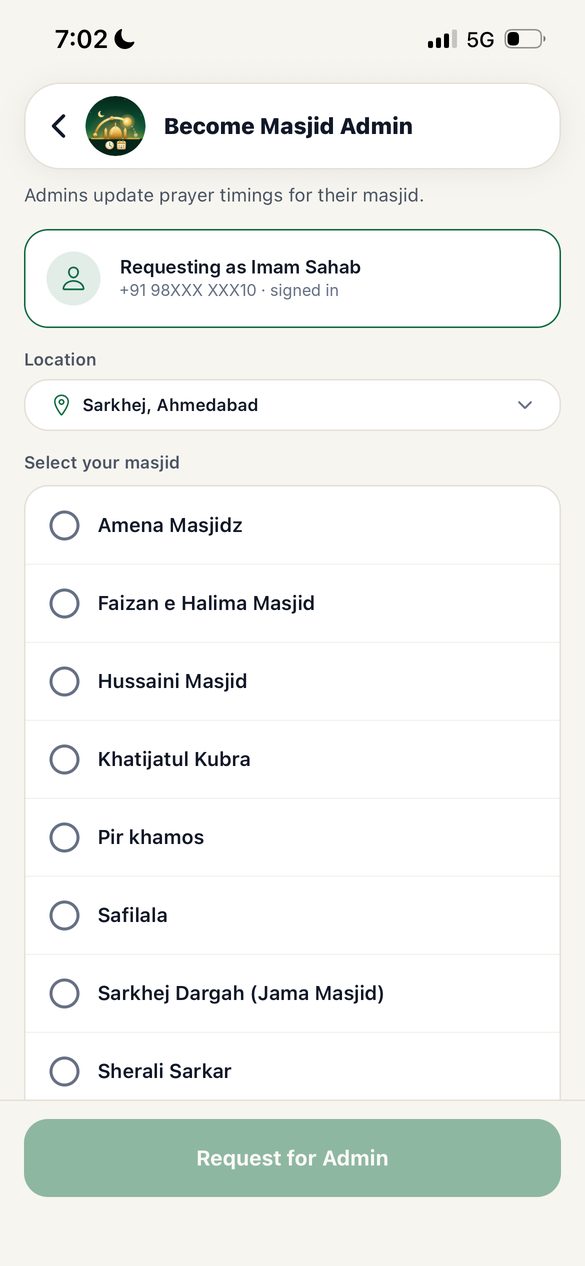
Step 1: Ask for access
More → Request & Support → Become Masjid Admin. You only do this once.
- Location. Choose the area of your masjid.
- Select your masjid. Tap the circle next to your masjid. If your masjid is not in the list, send Add New Masjid first.
- Fill your name and mobile number if asked, then tap Request for Admin.
Step 2: Log in
Tap Settings at the bottom, then the Login row (“For Imam and Admin”) at the end of the list.
- Type the mobile number that was approved (10 digits; +91 is not needed).
- Tap Send OTP. A 6-digit code comes on WhatsApp or SMS.
- Type the code. On many phones it fills in by itself. You are logged in as soon as all 6 digits are in.
- The app opens the new My Masjid button at the bottom. You stay logged in until you log out.
 1
2
3
1
2
3
Step 3: Change jamaat times
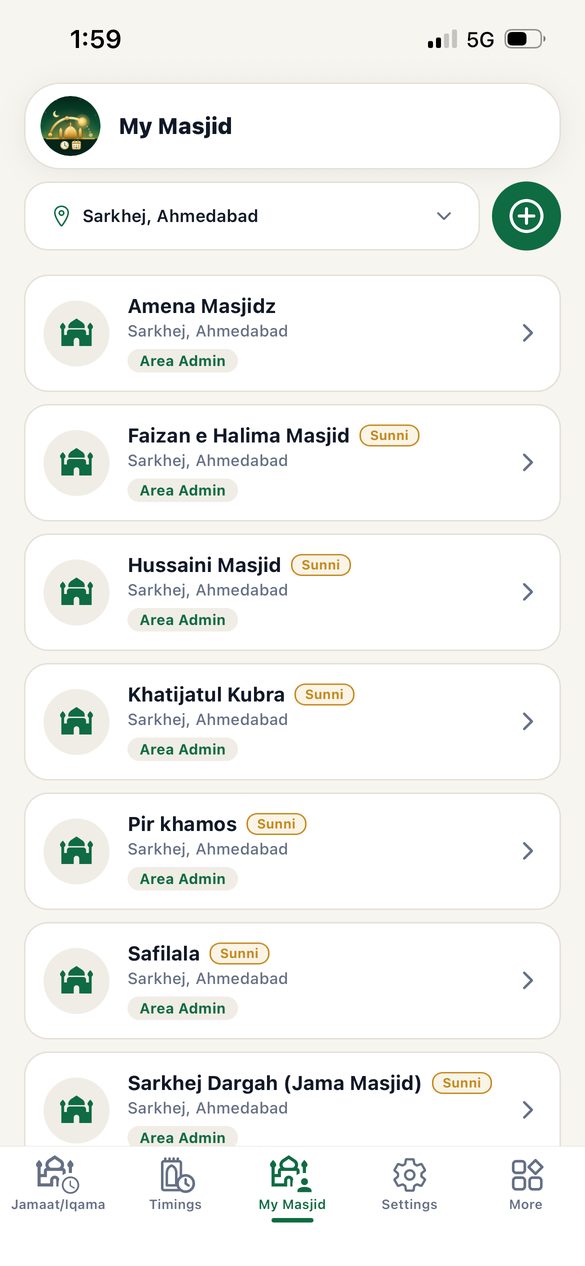
Tap My Masjid at the bottom (you see it only after logging in).
An imam sees their own masjid's page straight away. Admins who look after more than one masjid see a list like this one.
- Area. Choose which area's masjids to show.
- Round + (area and city admins only) adds a new masjid in this area with its jamaat times. It goes to our team for approval.
- Tap a masjid to open its page. Each tag shows your role at that masjid.
On the masjid page:
- Tap the small pen next to the namaz you want to change.
- Type the new time with numbers only. For example type 515 for 5:15 or 130 for 1:30. The app puts the colon and AM or PM for you.
- Tap Save. The new time shows at once, and namazis in your area get a notification.
- Maghrib is set as minutes after sunset (for example 5 minutes). Use − and +. It then moves with sunset every day by itself.
- Jumu'ah: tap Add Jumu'ah to add the first or a second Jumu'ah time.
- Eid and Taravih: in their season, rows for Eid (date and time) and Taravih appear with their own pen.
In Ramadan
- Suhur and Iftar times for your area are always at the top of the Jamaat/Iqama page, next to the circle. More times are on the Timings page under Show 6.
- Taravih times show on each masjid's page, after Isha. Imams set them with the pen on the Taravih row (time and type, and a second Taravih if there is one).
- Eid namaz times show from the last days of Ramadan until Eid day. Imams set the date and time with the pen on the Eid row.
- If the moon was seen on a different day in your city, set Hijri date adjustment in Settings so dates match.
Common questions
My masjid is not in the list.
First check Settings → Show masjids is set to All. If it is still missing, send Add New Masjid from Request & Support.
A masjid's jamaat time is wrong.
Send a ticket with the masjid name and the correct time. If you are the imam, ask for admin access so you can fix it yourself.
Why are Timings and Jamaat times different?
Timings shows when each namaz starts and ends in your area. Jamaat/Iqama shows when each masjid prays in jamaat. Jamaat is always some time after the start.
I am not getting reminders.
Open Settings and turn Notifications on. If the phone blocked it, the app shows a button to open the phone's settings; allow notifications for Masjid Hub there. Also check Prayer reminder is not Off.
The Islamic date is one day off.
Settings → Hijri date adjustment, tap − or + once.
Do I need to log in?
No. Logging in is only for imams and admins who change times. Everyone else can use the whole app without an account.
Does it work without internet?
Yes, for the last times the app saved. Pull down on the list when you are back online to get the newest times. Wafat reminders work without internet.
A request button is grey.
You already sent that kind of request today. It opens again after midnight.